Companion mobile appTurn phones into wireless anglesAffordable multicam
Built for course production · From live to post
Multicam without the high cost.Program and tracks in one take.
Turn Android phones you already own into wireless angles alongside screens, cameras, and RTMP feeds. Direct and stream live while LectureGo records the program, every video ISO, isolated audio track, and a Resolve timeline.
Source available for noncommercial use only.
Input sourcesConnect multiple at once
Screen / WindowSlides and app demos
Camera / RTMPPro cameras and external feeds
Program monitor LIVE
RTMP / RTMPS liveIndependent control · Auto reconnect
Isolated local recordingProgram · Video ISO · Separate audio
Resolve multi-track timelineXML / OTIO · Media aligned
6 typesof input sources
RTMP(S)live program output
Video ISOone file per video source
ResolveXML / OTIO timeline
Stream and record together
Stream and record together, without tying them together
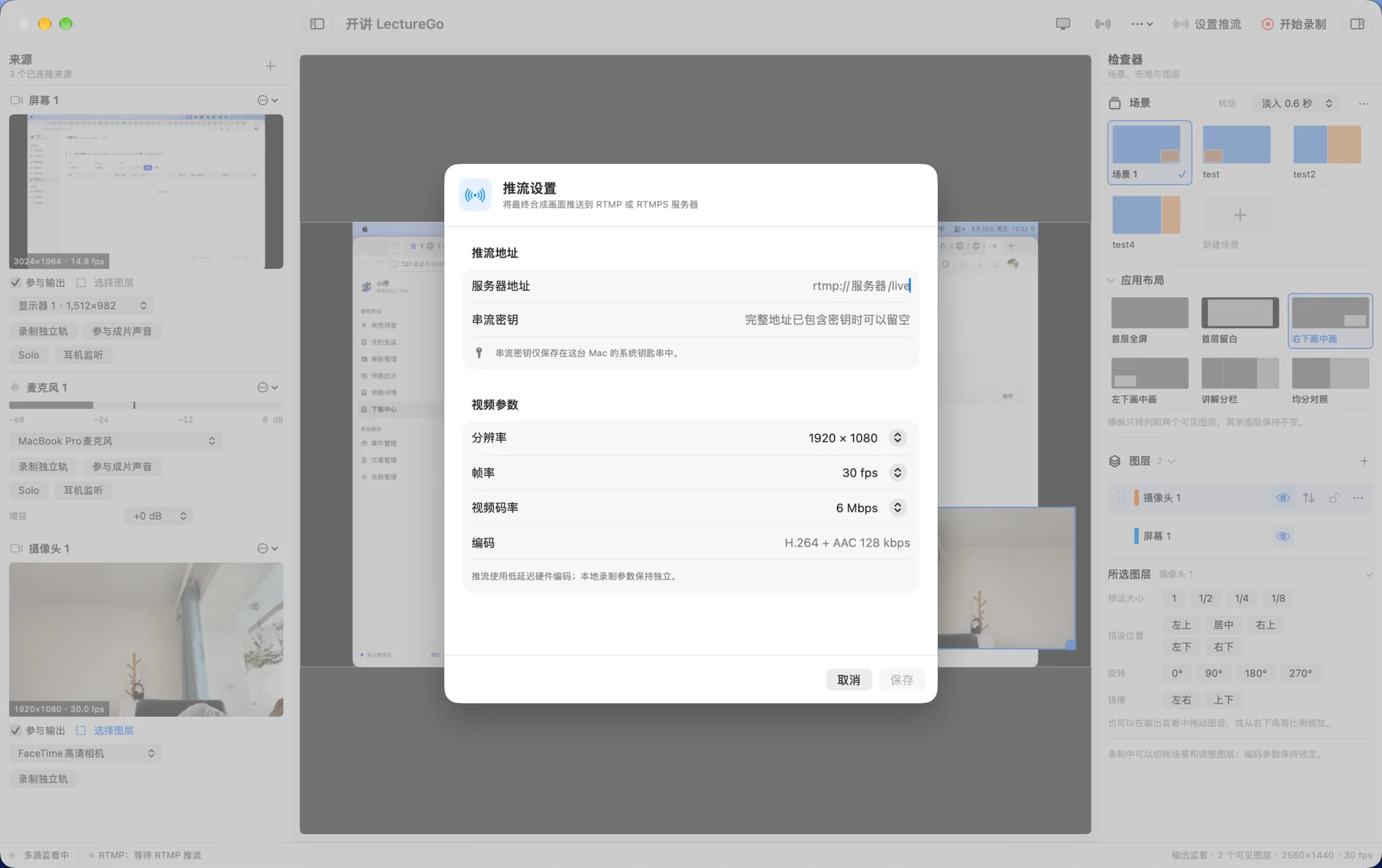
LectureGo encodes the final program as H.264 + AAC and publishes it over RTMP or RTMPS. Streaming and local recording start independently, while scene changes and layer adjustments stay synchronized across both outputs.
- Defaults to 1080p, 30 fps, H.264 at 6 Mbps and AAC at 128 kbps
- Automatically reconnects after a server interruption without restarting the app
- Stores the stream key in macOS Keychain and keeps it out of logs
Program monitor LIVE
1920 × 108030 fpsH.264 + AAC
RTMP / RTMPS liveAutomatic reconnect
Local isolated recordingProgram, ISO and audio tracks
Complete post-production freedom
Deliver the program now. Refine every track later.
The mixed video is ready for immediate delivery, while isolated tracks preserve every option for the final cut. Reframe, color or replace each picture independently, and denoise, mix or adjust every sound source on its own.
- Each video source is saved as an ISO file, untouched by the program layout
- System audio and every microphone are recorded as separate audio tracks
- Media, tracks and recording markers are placed into a Resolve timeline
SourceIsolated fileTrack
Screen 1
01-Screen-1-ISO.movV1Camera 1
02-Camera-1-ISO.movV2System audio
01-Screen-1-System.m4aA1Microphone 1
03-Microphone-1.m4aA2
Program.mov
+
Lecture.xml / Lecture.otio
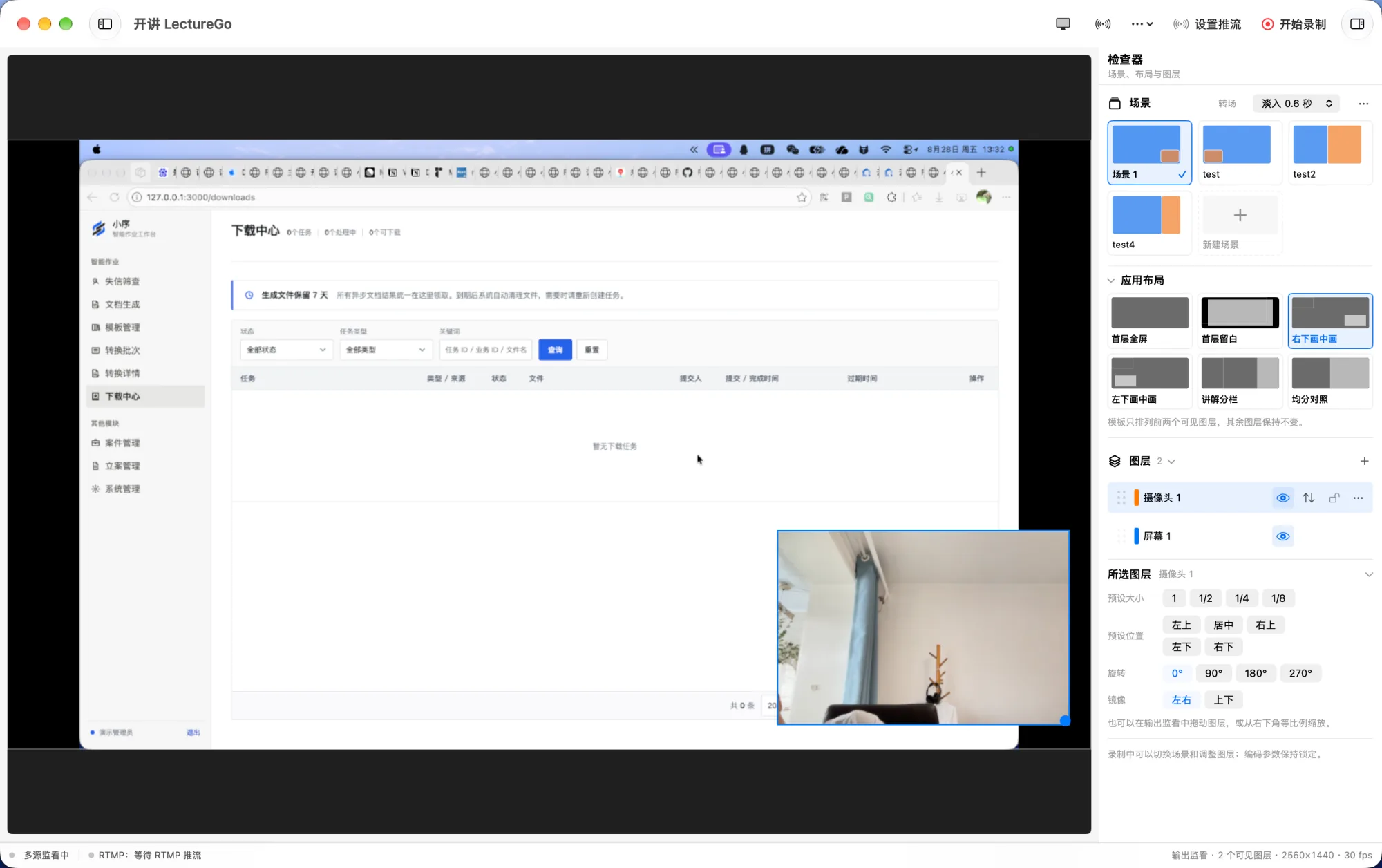
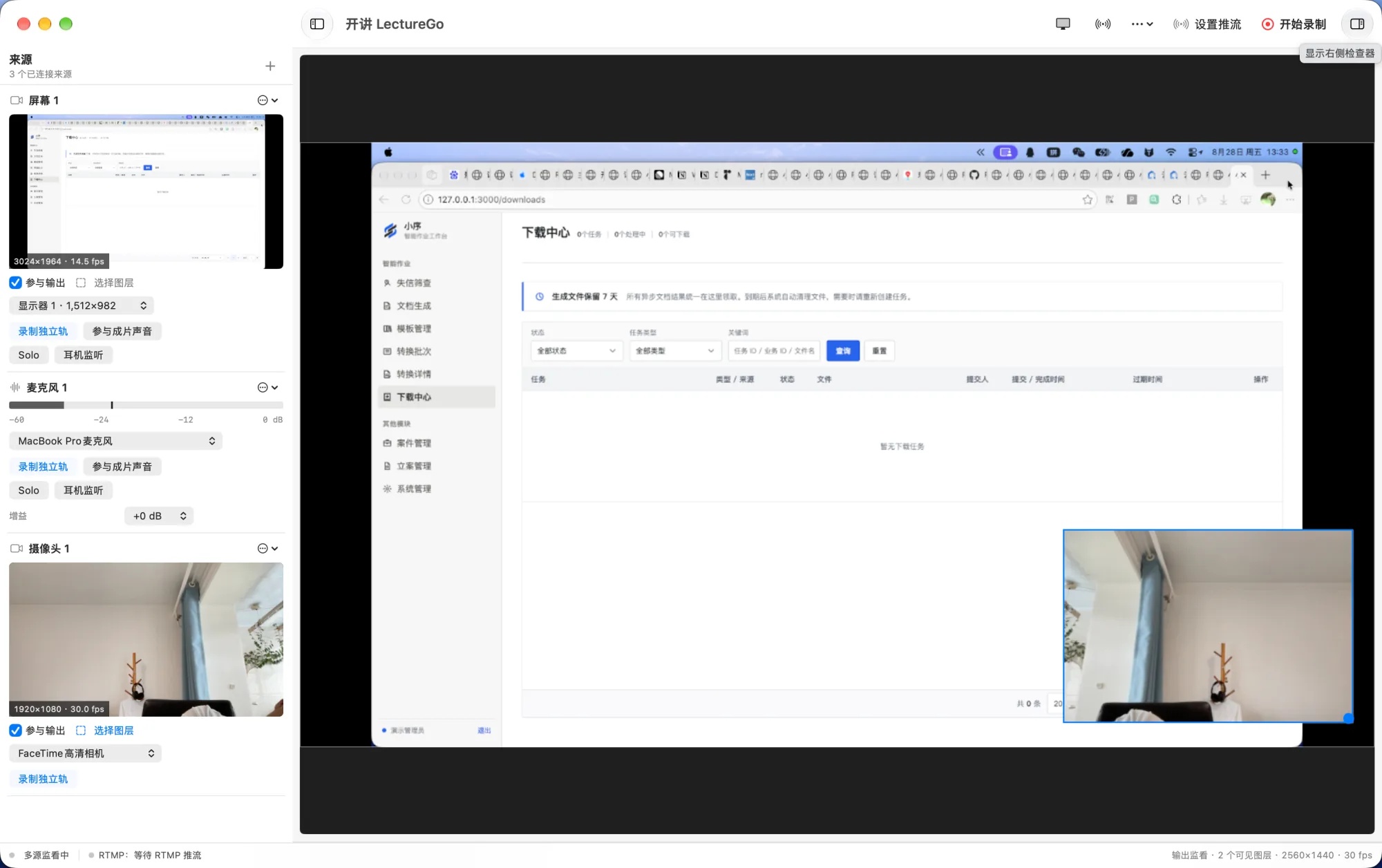
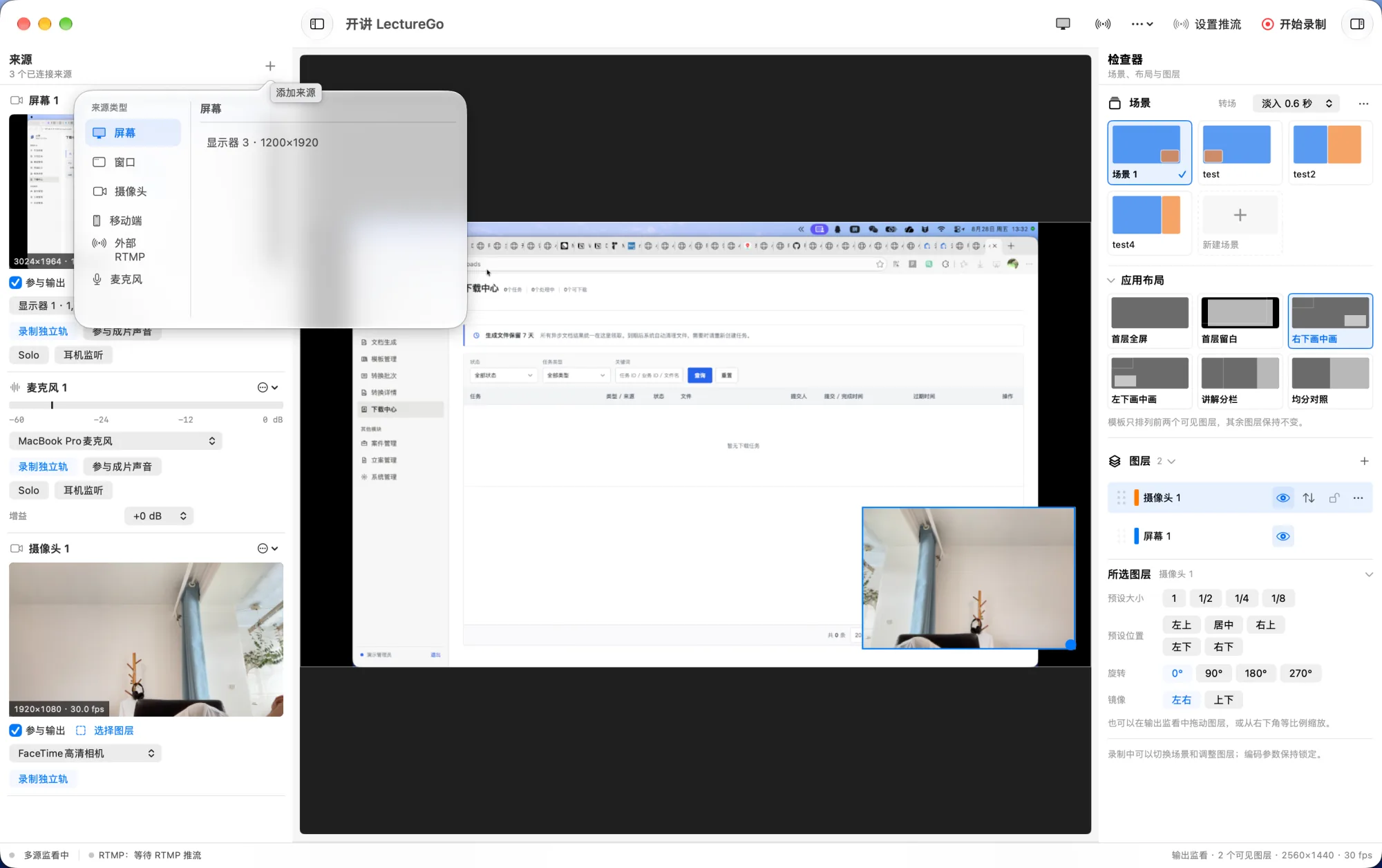
Real application interface
See every input and output
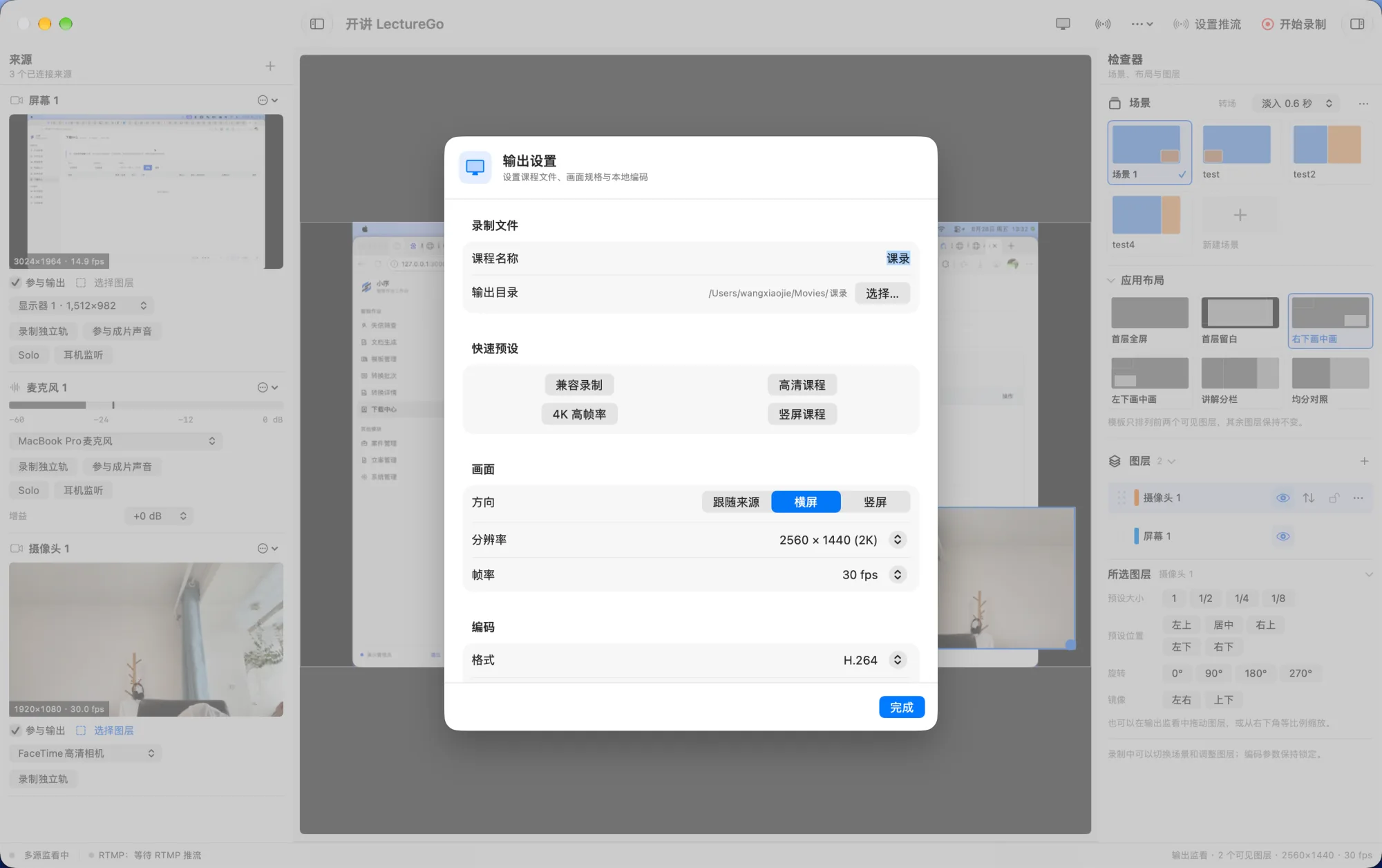
Source connections, live layout and output settings stay together in one course recording workspace.
From lecture to delivery
Configure less. Teach more.
Stop stitching together capture, production, and timeline tools. Connect sources, go live, and preserve every post-production asset in one workspace.
Multi-source input, affordable multicam
Connect screens, windows, cameras, RTMP and microphones, then use the Android companion to turn multiple phones you already own into wireless angles.
Live scene composition
Move, resize, reorder and lock layers, or apply full-screen, picture-in-picture and split-screen layouts.
Program and ISO recording
Capture the mixed program, every video ISO and every isolated audio track in one synchronized session.
Ready for the full edit
Export DaVinci Resolve XML and OTIO multi-track timelines with aligned media, tracks and recording markers.
LectureGo or OBS?
Choose OBS for a universal studio. Choose LectureGo for a complete course.
OBS is a powerful, open production platform for recording and streaming. LectureGo builds the deliverables course creators need into the default workflow. The best choice depends on what you need when the session ends.
What matters
LectureGoCourse production workspace
OBS StudioUniversal streaming and recording
Core workflow
Designed around course ingest, direction, streaming, isolated capture, and delivery
A general platform for streaming, recording, and many production scenarios
Video media
Per-source ISO built in: save the program and every video source together
The standard workflow records the composed output; plugins and scripts can extend it
Audio for post
Source becomes file: system and microphone audio are named and saved separately
Advanced Output supports up to six recording tracks with manual source assignment
Editing handoff
Automatic: Resolve XML / OTIO timeline, aligned media, markers, and report
Outputs recording files; build the post workflow around your formats, plugins, and editor
Best fit
Teachers, trainers, knowledge creators, and teams that repeatedly edit courses
Creators who need cross-platform use, complex overlays, game capture, or deep customization
OBS continues to evolve through releases, plugins, and scripts. This comparison is based on its official product page, overview guide, and multi-track audio guide, and is intended only to help you choose a workflow.
Tutorial
Record and stream a course in six steps
Follow the workflow from connecting sources and going live to opening the complete multi-track edit in DaVinci Resolve.
- 01
Add recording sources
Select Add in the Sources panel, then choose a screen, window, camera, mobile device, external RTMP stream or microphone. Keep an Android device on the same local network as the Mac for discovery.
- 02
Add sources to the output scene
Add the required video sources as output layers. Move and resize them freely, or apply a full-screen, picture-in-picture or split-screen layout.
- 03
Enable isolated recording
Turn on isolated recording for each video or audio source. The scene layout only affects the mixed program and never crops the original source files.
- 04
Configure recording and streaming
Choose the program orientation, resolution and codec. For a live session, add the RTMP/RTMPS server and stream key. Streaming defaults to 1080p at 30 fps.
- 05
Start streaming and recording
Start Streaming and Start Recording are independent controls. Run either output by itself or use both together. Streaming reconnects automatically after an interruption.
- 06
Import into DaVinci Resolve
After recording, choose File → Import → Timeline in Resolve. Use
Lecture.xmlwith Resolve 18.1–18.4, or preferLecture.otiowith Resolve 18.5 and later.
Recording output
Mixed program + video ISO files + separate audio tracks + Resolve timeline + recording report
Download v0.1.8
Choose a device and start recording
The macOS application handles live composition, streaming and recording. The Android companion sends a phone screen or camera to the Mac as a wireless source.
macOS application
macOS 14+ · Apple Silicon
Android companion
Android 10+ · Current test signature
Or build from source
Swift 5.9+ is required. On first launch, grant screen recording, camera, microphone and local network permissions.
git clone https://github.com/985860612/LectureGo.git
cd LectureGo
./scripts/build-app.shContact and support
Help make LectureGo better
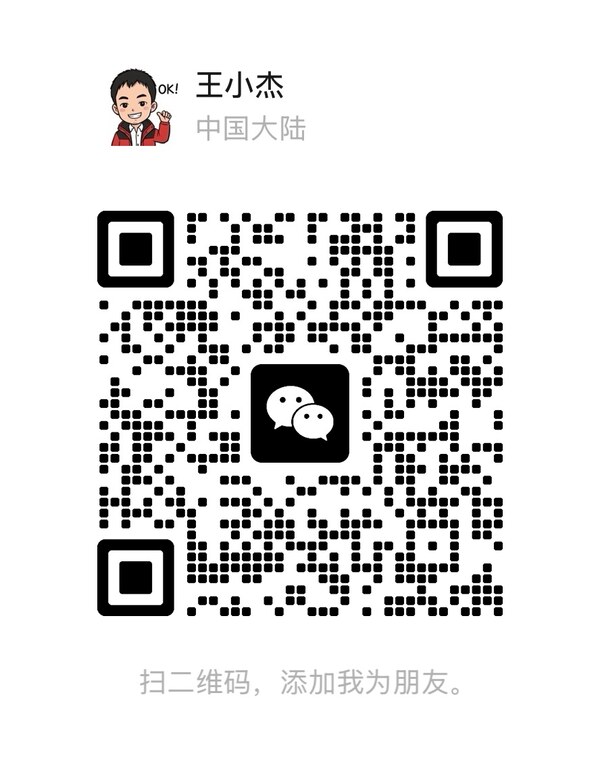
Report problems through GitHub Issues or scan the code to contact the author on WeChat. Donations are voluntary and do not grant a commercial license, priority support or a service commitment.
Contact the author
Mention LectureGo in your WeChat request
WeChat donation
Support continued development
Alipay donation
Support continued development
License boundary
Source available. No commercial use.
LectureGo is provided under the PolyForm Noncommercial License 1.0.0. Learning, research, experimentation and other noncommercial uses permitted by the license are allowed. Commercial use, commercial integration, paid delivery and for-profit deployment are not licensed.
Read the license